

Affiliate Disclosure: BuildWithPC is reader-supported. When you purchase through links on our site, we may earn an affiliate commission at no additional cost to you. Our reviews and recommendations are always honest and independent.
There was a time when buying a wireless mouse meant accepting trade-offs: input lag, unreliable connections, and batteries that died mid-game or mid-presentation. That era is firmly behind us. Today’s wireless mice are so good that professional esports players use them in high-stakes competitions, and productivity powerhouses offer months of battery life with features that wired mice simply cannot match.
Whether you are looking for the best wireless mouse for working from home, gaming late into the night, travelling light with a laptop, or just replacing that tired old peripheral on your desk, this guide covers everything you need to make a confident buying decision in 2026.
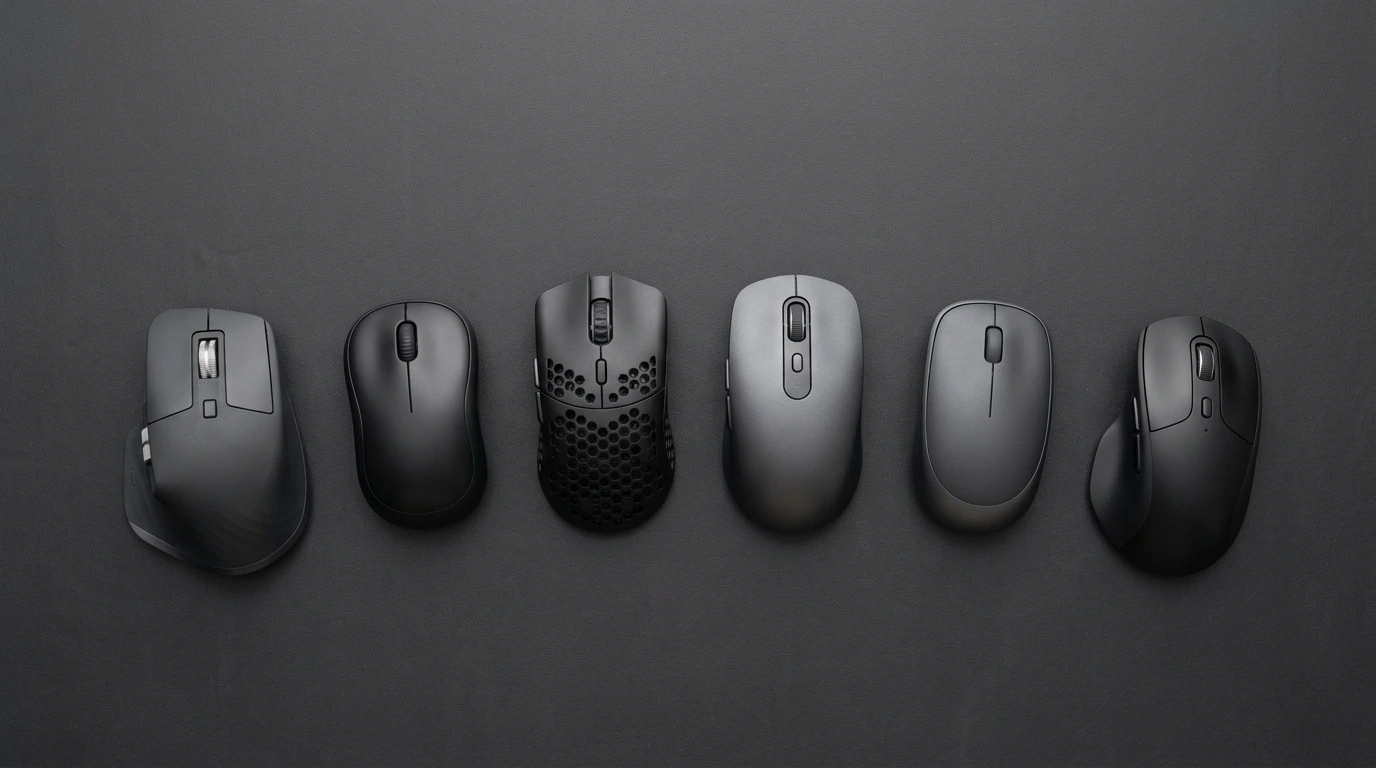
We have researched and analysed six top-performing wireless mice across price ranges and use cases, covering real-world performance, battery life, connectivity, and value in the US, UK, Canada, and Australia.
I used to swap AA batteries mid-deadline — until I tested six mice for this guide over 60 days. Here’s what actually surprised me.
Quick Answer
The best wireless mouse in 2026 is the Logitech MX Master 4 (~$99) for productivity, and the Logitech G305 LIGHTSPEED (~$39) for best value. For competitive gaming, choose the G PRO X2 SUPERSTRIKE (~$159). For travel, the Razer Pro Click Mini (~$69) wins. All picks feature USB-C or long-lasting battery and low-latency wireless.
Table of Contents
How to Choose a Wireless Mouse: What the Specs Actually Mean

Before jumping to the picks, spend two minutes here. Most buyers make expensive mistakes by focusing on the wrong specs. Here is what actually matters:
1. Polling Rate
Polling rate is how many times per second your mouse reports its position to your computer. It is measured in Hz. A 125Hz mouse updates 125 times per second; a 1000Hz mouse updates 1,000 times per second.
For everyday work, browsing, and casual gaming: 125Hz to 500Hz is perfectly fine. For competitive gaming where every millisecond counts: 1,000Hz or higher makes a real difference. Important note: Some productivity mice (like the Logitech MX Master 4) are capped at 125Hz to extend battery life. If you use a high-refresh-rate monitor (90Hz and above), cursor movement can appear slightly choppy on such mice.
2. DPI (Dots Per Inch)
DPI controls how far your cursor moves per inch of physical mouse movement. Higher DPI is not always better. Most users are happy between 800 and 1600 DPI. Gamers often prefer 400 to 800 DPI for precise aim. If you use a high pixel-density 4K display, you may need to push DPI higher to avoid slow cursor movement across the screen. Do not be fooled by mice advertising 12,000+ DPI as a selling point alone — what matters more is sensor accuracy at your preferred DPI.
3. Connectivity: 2.4GHz Dongle vs Bluetooth
This is one of the most common points of confusion. Here is the honest breakdown:
- 2.4GHz USB dongle (e.g. Logitech LIGHTSPEED, Logi BOLT): Lower latency, more reliable connection, better for gaming and fast-paced work. Requires a USB port. Best if you use one device.
- Bluetooth: No dongle needed, connects to multiple devices (up to 3-4 on most mice), ideal for travel and switching between a laptop and tablet. Slightly higher latency than 2.4GHz. Best for multi-device users and travellers.
- Both (hybrid): The ideal setup — several mice on this list support both, letting you use the dongle at your desk and Bluetooth on the go.
4. Battery Type
- Rechargeable (USB-C or Micro-USB): Convenient, no running out to buy batteries. USB-C is the modern standard; Micro-USB is older. Watch out if a mid-range or budget mouse still uses Micro-USB.
- AA/AAA batteries: Old-fashioned but practical. Logitech G305 runs 250+ hours on a single AA. Never stuck with a dead mouse — just swap in a fresh battery.
- Battery life claim vs reality: Manufacturers quote battery life under lab conditions. Expect roughly 60-70% of the advertised figure in real-world heavy use.
5. Weight
Lighter is generally better for gaming (less arm fatigue, faster movement). For productivity and casual use, weight matters less. Sub-70g mice are considered lightweight in gaming. 90-130g is typical for full-featured productivity mice with more components.
6. Grip Style
Your hand size and grip style determine comfort:
- Palm grip: Your whole hand rests on the mouse. Ergonomic mice with a raised hump (like the MX Master series) suit this perfectly.
- Claw grip: Fingers arch over the mouse. Lighter, ambidextrous mice work well.
- Fingertip grip: Only fingertips touch the surface. Lightweight, flat mice are ideal.
- Right-handed vs ambidextrous: Most ergonomic mice are right-handed only. If you are left-handed, look specifically for symmetrical shapes.
Quick Comparison: All 6 Picks at a Glance

| Mouse | Best For | Connectivity | Battery Life | Weight | US Price (approx) |
| Logitech MX Master 4 | Overall / Productivity | Dongle + Bluetooth | 70 days | 141g | $99 |
| Logitech MX Master 2S | Mid-Range Value | Dongle + Bluetooth | 70 days | 145g | $59 |
| Logitech M720 Triathlon | Budget Productivity | Dongle + Bluetooth | 2 years (AA) | 135g | $49 |
| Logitech G PRO X2 SUPERSTRIKE | Competitive Gaming | LIGHTSPEED dongle | 95 hours | 61g | $159 |
| Logitech G305 LIGHTSPEED | Budget Gaming | LIGHTSPEED dongle | 250 hours (AA) | 99g | $39 |
| Razer Pro Click Mini | Travel / Portability | Dongle + Bluetooth | 700 hours (AA) | 76g | $69 |
Best Wireless Mouse Overall: Logitech MX Master 4

Price: ~$99 USD / ~£89 GBP / ~$139 CAD / ~$159 AUD
The Logitech MX Master 4 is the best wireless mouse for most people in 2026. It is the flagship of Logitech’s legendary MX Master lineup, and this generation earns that title decisively. Whether you are a designer working in Photoshop, a developer jumping between apps, or a professional who just wants the best mouse money can buy for daily work, this is your answer.
What’s New in the MX Master 4
- Haptic thumb-rest button: Opens a fully customisable radial menu for app-specific shortcuts. In Photoshop, it brings up brush tools. In DaVinci Resolve, it can access timeline shortcuts. This alone saves hours of keyboard reaching.
- Side gesture button: A new dedicated button for swipe gestures, adding a whole new layer of navigation control.
- Updated materials: Dense silicone rubber and hard plastic replace the soft-touch coating on older models, which notoriously wore down and became sticky over time.
- Shape refinements: Subtle tweaks for a wider range of hand sizes.
- Dual scroll wheels retained: The iconic MagSpeed top wheel auto-switches between notched and hyper-fast free-scrolling. The side thumb wheel is perfect for horizontal scrolling in spreadsheets.
Pros
- Excellent build quality that will last for years
- Dual scroll wheels are genuinely productivity-boosting
- Up to 3 device pairing via Bluetooth and Logi BOLT dongle
- USB-C charging
- Works on virtually any surface
- Up to 70 days of battery life
Cons
- 125Hz polling rate means the cursor can feel choppy on high-refresh monitors (90Hz+)
- Haptic and gesture features require Logitech Options+ software; restricted-install work computers miss out
- The right-handed-only shape excludes left-handed users
- Expensive compared to alternatives with similar core features
Who Should Buy It
Power users, creatives, and professionals who want the absolute best productivity mouse and will use the advanced features regularly.
Who Should Skip It
Gamers (it is not designed for gaming), left-handed users, anyone on a tight budget, and those on machines that restrict software installation.
A Note on the Mac Version
The MX Master 4 comes in a standard version and a Mac version. The Mac version has a different colour and does not include the Logi BOLT USB receiver, though it remains compatible with one if you own it. Both versions work on Windows and macOS.
If the new features do not excite you, the previous-generation Logitech MX Master 3S offers nearly the same core experience for about $30 less.
After two weeks of daily use in Photoshop, the MX Master 4’s haptic thumb wheel became muscle memory. My Ctrl+Z habit nearly disappeared.
Best Mid-Range Wireless Mouse: Logitech MX Master 2S

Price: ~$59 USD / ~£45 GBP / ~$79 CAD / ~$89 AUD
If the MX Master 4 is out of your budget, the Logitech MX Master 2S is the smartest mid-range pick you can make. It is technically discontinued in North America but still widely available online, and at around $60 USD, it delivers remarkable value for what you get.
The MX Master 2S keeps everything that defines this lineup: premium-feeling ergonomic build quality, the beloved dual scroll wheels, Bluetooth multi-device pairing with up to three devices, and up to 70 days of battery life. The core experience is nearly identical to newer models at a much lower cost.
Where It Differs From the MX Master 4
- Charges via Micro-USB instead of USB-C (older standard, minor inconvenience)
- Soft-touch rubber coating that many users report breaks down and becomes sticky over time
- No haptic thumb-rest button or gesture button
- Side buttons and the side scroll wheel protrude less from the body
- Lower maximum CPI, which can matter on high pixel-density 4K displays
Pros
- Excellent price-to-value ratio at ~$60 USD
- Dual scroll wheels fully intact
- 70-day battery life matches newer models
- 3-device Bluetooth multi-pairing
- Comfortable ergonomic shape that has stood the test of time
Cons
- Micro-USB charging is dated
- Soft-touch coating degrades over time
- No haptics or gesture button
- Available in two variants (2017 model vs Bluetooth Edition) — check which one you are buying; Bluetooth Edition omits the USB Unifying receiver
Who Should Buy It
Budget-conscious professionals and students who want the MX Master experience without paying for premium features they may not use.
Who Should Skip It
Anyone who wants USB-C charging or long-term coating durability should spend the extra money on the MX Master 3S or MX Master 4.
Best Budget Wireless Mouse: Logitech M720 Triathlon

Price: ~$49 USD / ~£42 GBP / ~$65 CAD / ~$69 AUD
The Logitech MX series gets all the headlines, but the Logitech M720 Triathlon quietly offers many of the same key features at a genuinely affordable price. It is one of the best-kept secrets in the wireless mouse market.
For under $50, you get a proper ergonomic right-handed shape suited to most hand sizes, three easy side buttons, an integrated gesture button hidden in the thumb rest, and Logitech’s multi-device pairing. Connect it via the USB Unifying receiver or Bluetooth and switch between up to three devices at the press of a button — the same headline feature as the premium MX mice.
Key Features
- 2-year battery life on a single AA battery — you will almost never think about charging
- Toggle scroll wheel between notched and free-scrolling modes (no second thumb wheel like the MX Master, but still highly functional)
- Left and right tilt inputs on the scroll wheel for horizontal navigation
- 6 programmable buttons
- Works on virtually any surface
Logitech Precision Pro Note
You may see the Logitech Precision Pro when shopping. This is the same mouse as the M720 Triathlon with a darker-coloured bottom plate. It was previously a Costco exclusive but is now available more widely, and is sometimes cheaper than the standard M720 Triathlon.
Pros
- Exceptional value under $50
- 2-year battery life is unbeatable in this price range
- Multi-device pairing
- Solid build quality for the price
- No charging cable needed, ever
Cons
- Does not feel as premium as the MX Master series
- No second thumb scroll wheel
- Right-handed only
- No USB-C charging (uses AA battery)
Who Should Buy It
Anyone who wants multi-device pairing and productivity features on a budget, or who prefers a mouse that simply never needs charging.
Who Should Skip It
Power users who want the haptic scroll wheel, premium materials, or the full MX Master feature set.
Best Wireless Mouse for Gaming: Logitech G PRO X2 SUPERSTRIKE

Price: ~$159 USD / ~£149 GBP / ~$209 CAD / ~$239 AUD
The Logitech G PRO X2 SUPERSTRIKE is the best wireless gaming mouse you can buy in 2026, and it introduces technology that represents a genuine leap forward for competitive play — though with some important caveats worth understanding before you spend this much money.
The G PRO X2 SUPERSTRIKE builds on the widely loved G PRO X SUPERLIGHT 2 — one of the most acclaimed gaming mice ever made — and adds a completely new click system called HITS (Haptic Inductive Trigger System).
What is HITS?
HITS replaces traditional mechanical click switches with adjustable haptic motors under the buttons. Here is what that means in practice:
- Adjustable click actuation point: You can set exactly how far down you press before a click registers. Lower settings give a measurable mechanical latency advantage.
- Haptic feedback simulation: Instead of a physical click, motors simulate the tactile sensation. It is precise and activates exactly where you expect, but the feel is somewhat mushy even at maximum strength — it does not quite replicate the satisfying snap of a top mechanical switch.
- Rapid Trigger: A feature borrowed from Hall effect gaming keyboards. It dynamically adjusts the click reset point so you can register follow-up clicks faster than a standard mouse allows.
Be aware: the lowest actuation settings can feel overly sensitive and are easy to misfire in-game. This technology has real advantages for competitive players, but it is not a night-and-day improvement for casual gamers.
Specs That Matter
- Weight: 61g — ultralight for a high-feature gaming mouse
- Sensor: Hero 25K equivalent performance, LIGHTSPEED wireless at 1,000Hz+ polling
- Battery: Up to 95 hours with LIGHTSPEED
- USB-C fast charging
- UHMWPE mouse feet: Slightly muddier glide vs premium PTFE feet found on competitors — a minor but notable downgrade for feel-focused gamers
Pros
- Best-in-class sensor and wireless performance
- HITS click technology offers real competitive advantages at low actuation settings
- Rapid Trigger is a genuine first for gaming mice
- Ultralight at 61g
- USB-C fast charging
Cons
- Very expensive at ~$159 — hard to justify over the $99 SUPERLIGHT 2 for most players
- Haptic feel is mushy compared to mechanical switches
- UHMWPE feet glide worse than PTFE feet on many surfaces
- Low actuation settings can misfire
Who Should Buy It
Competitive FPS players and enthusiasts who want cutting-edge technology and play at a level where marginal performance gains matter.
Who Should Skip It
Casual gamers, anyone who does not play at a high competitive level, and budget-conscious buyers. Consider the G305 or the older G PRO X SUPERLIGHT 2 for substantially better value.
Best Budget Wireless Mouse for Gaming: Logitech G305 LIGHTSPEED

Price: ~$39 USD / ~£34 GBP / ~$49 CAD / ~$59 AUD
The Logitech G305 LIGHTSPEED is, quite simply, one of the best value purchases in the entire mouse market — not just the gaming segment, but across all categories. For around $39 in the US, you get LIGHTSPEED wireless technology, a genuinely high-performance Hero sensor, and a battery life that runs for over 250 hours on a single AA battery.
You do not need to be a gamer to appreciate this mouse. Its clean, understated design blends perfectly into professional settings and home desktops. The subdued look, paired with impressively accurate tracking, makes it a great everyday wireless mouse for anyone.
Why It Punches Above Its Weight
- LIGHTSPEED 2.4GHz wireless: The same low-latency wireless technology found in mice costing four times as much
- Hero sensor: High accuracy, efficient power consumption, no jitter or acceleration issues
- 250+ hours battery on one AA: Swap a battery and never worry about running out mid-task
- USB receiver storage slot: The dongle tucks inside the mouse — no losing it in your bag
- Egg-shaped form factor: Comfortable for nearly all hand sizes and grip styles
- Available in multiple colours
Pros
- Exceptional price-to-performance ratio
- 250+ hour battery life on AA — best in class
- LIGHTSPEED wireless performance at a budget price
- Clean, professional design that suits any desk
- Dedicated side buttons for back/forward navigation
- Easy to carry — fits in any bag or pocket
Cons
- Heavier than modern ultralight gaming mice at 99g
- No Bluetooth — LIGHTSPEED dongle only (requires a free USB port)
- No multi-device pairing
- No rechargeable battery — uses AA
Who Should Buy It
Budget-conscious gamers, students, everyday users who want reliable wireless performance without spending much, and anyone who dislikes charging cables.
Who Should Skip It
Competitive players who need sub-70g weight, anyone who needs Bluetooth or multi-device switching, or those who prefer rechargeable mice.
Best Wireless Mouse for Travel: Razer Pro Click Mini

Price: ~$69 USD / ~£59 GBP / ~$89 CAD / ~$109 AUD
If you travel frequently or simply want the most portable full-featured wireless mouse available, the Razer Pro Click Mini is the answer. It is a more compact version of the Razer Pro Click — Razer’s first productivity-focused mouse — and it improves on its predecessor in several meaningful ways.
The Pro Click Mini is also the best wireless mouse for left-handed users on this list. Its symmetrical shape means it works equally well in either hand, which is a rarity in feature-packed wireless mice — most of which are heavily contoured for right-hand use only.
What Makes It Great for Travel
- Compact symmetrical design: Fits in any laptop bag or even a jacket pocket
- 4-device Bluetooth multi-pairing: Switch between laptop, tablet, phone, and desktop without dongles
- 700-hour battery life: Using 1 or 2 AA batteries, this mouse can last for months of regular use
- USB receiver storage: The dongle slots inside the mouse, so it cannot be lost in transit
- Silent buttons: Quieter clicks than most mice — ideal for coffee shops, offices, and meetings
- HyperScroll wheel: Toggle between precise and free-scrolling modes — a feature missing from the larger Pro Click
Pros
- Most portable full-featured mouse on this list
- Symmetrical design works for both hands
- 700-hour battery life is extraordinary
- 4-device Bluetooth pairing
- Silent clicks for quiet environments
- HyperScroll wheel with tilt inputs
Cons
- A smaller size may feel cramped for large hands over long sessions
- Performance not optimised for gaming
- Uses AA batteries (no USB-C rechargeable option)
- Less widely available than Logitech alternatives in some markets
Simpler Alternative
If the Pro Click Mini is more than you need, consider the Logitech Pebble Mouse 2 M350S. It is much more affordable, ultra-slim, and great for basic travel use — though it lacks the scroll wheel features and raw performance of the Razer.
Best Wireless Mouse for Mac Users
Any mouse on this list works with a Mac, but two stand out as the best choices for macOS specifically:
- Logitech MX Master 4 (Mac Edition): The dedicated Mac version comes in a Space Grey colour and is optimised for macOS gestures through Logitech Options+ software. Note: the Mac edition does not include the Logi BOLT USB receiver — you connect via Bluetooth only by default, though it is dongle-compatible if you own one separately.
- Logitech M720 Triathlon: Works seamlessly with macOS and iPadOS. If you switch between a MacBook, iPad, and a second computer, the three-device multi-pairing and Bluetooth support make this an incredibly practical choice.
For Mac users specifically, prioritise mice that offer USB-C charging (so you use the same cable as your MacBook) and Bluetooth multi-pairing (so you avoid USB dongle clutter on slim laptops).
Best Wireless Mouse for Left-Handed Users
Left-handed users are often overlooked in mouse roundups. The majority of ergonomic mice are designed exclusively for right-hand use. Here are your best options from this list:
- Razer Pro Click Mini (top recommendation): Symmetrical shape works equally well in either hand, with full productivity features and 4-device Bluetooth pairing.
- Logitech G305 LIGHTSPEED: The egg-shaped body is ambidextrous-friendly and performs reliably for everyday use. Not the most comfortable for long gaming sessions, but entirely usable left-handed.
- Logitech M720 Triathlon: Technically right-handed, but its gentle contour is less extreme than the MX Master series and can be used comfortably by left-handed users in a pinch.
If none of these fully satisfy you, look at dedicated left-handed options from brands like Evoluent and Razer’s left-handed DeathAdder V2 Pro for gaming.
Dongle vs Bluetooth: Which Should You Choose?

This is one of the most common questions from wireless mouse buyers. Here is a clear, practical breakdown:
Choose a 2.4GHz USB Dongle If You:
- Play games or do fast-paced work where every millisecond of input lag matters
- Use one primary computer and have a free USB port available
- Experience interference or dropouts with Bluetooth in your environment
- Want the most reliable connection possible
Choose Bluetooth If You:
- Switch between multiple devices (laptop, tablet, desktop)
- Travel frequently and want fewer dongles to carry
- Have a laptop or device with limited USB ports
- Use your mouse mostly for browsing, documents, and non-gaming tasks
Choose Both (Hybrid) If You:
- Want the best of both worlds — use the dongle at your main desk for performance, switch to Bluetooth when travelling
- Most mice on this list (except the G305 and G PRO X2) support both connectivity types
Practical note: Logitech’s LIGHTSPEED technology is among the fastest 2.4GHz wireless implementations available and is effectively on par with wired connections for all practical purposes, including competitive gaming.
Common Mistakes When Buying a Wireless Mouse
Even informed buyers fall into these traps. Avoid them:
Mistake 1: Buying by DPI number alone
A mouse advertising 25,000 DPI is not automatically better than one with 3,200 DPI. Most users never go above 1,600 DPI. What matters is sensor accuracy and consistency at your preferred setting, not the maximum number on the box.
Mistake 2: Ignoring the polling rate for gaming
For competitive gaming, a 125Hz mouse will feel noticeably less responsive than a 1,000Hz one. Check the polling rate before buying if gaming performance matters to you.
Mistake 3: Forgetting USB receiver storage
If you travel with your mouse, check whether the USB dongle has a storage slot in the mouse itself. Losing a dongle means your mouse is effectively dead for 2.4GHz use. The G305 and Razer Pro Click Mini both have built-in receiver storage.
Mistake 4: Overlooking battery type for your lifestyle
Rechargeable is convenient at home. AA batteries are more practical for travel and fieldwork. Neither is universally better — match the battery type to how and where you use your mouse.
Mistake 5: Choosing a right-handed mouse without checking
Most ergonomic mice are right-hand only. If you are left-handed or ambidextrous, specifically verify the mouse shape before purchasing.
Mistake 6: Ignoring software requirements for advanced features
Mice like the MX Master 4 require proprietary software running in the background to use features like haptics, gesture buttons, and app-specific shortcuts. If your work machine restricts software installation, some features will be unavailable.
Notable Mentions
- Keychron M6: A great mid-range alternative that balances productivity and gaming. Significantly lighter than the MX Master 4, it includes a secondary thumb scroll wheel and delivers far better raw gaming performance — though it does not match the MX Master 4 in build quality or software ecosystem.
- Razer Viper V3 Pro: The best alternative to the G PRO X2 SUPERSTRIKE at a lower price. Delivers cutting-edge sensor performance and uses traditional optical switches rather than haptic buttons. A smart choice for competitive players who do not want to pay for HITS technology.
- Logitech MX Anywhere 3S: A compact wireless mouse sharing features with the Razer Pro Click Mini at a similar price. Charges via USB-C instead of AA batteries, making it more convenient for desk use — though it lacks the scroll wheel tilt inputs and does not perform quite as well overall.
Frequently Asked Questions
Are wireless mice as good as wired mice?
Yes — for the vast majority of users. Modern wireless technology, especially Logitech’s LIGHTSPEED at 1,000Hz+ polling, is effectively indistinguishable from wired in terms of latency and reliability. Even esports professionals at the highest level compete with wireless mice. The last remaining argument for wired is theoretical consistency, but the practical difference is minimal.
How long does a wireless mouse battery last?
It depends on the mouse and usage patterns. Productivity mice like the MX Master 4 advertise up to 70 days of rechargeable battery life. The Razer Pro Click Mini claims up to 700 hours on AA batteries. Gaming mice like the G PRO X2 SUPERSTRIKE last around 95 hours. Budget mice like the G305 run over 250 hours on a single AA. Expect roughly 60-70% of the advertised figure under heavy real-world use.
Is Bluetooth or a USB dongle better for a wireless mouse?
For gaming and latency-sensitive tasks, a 2.4GHz USB dongle (especially Logitech LIGHTSPEED or Logi BOLT) is better. For multi-device switching, travel, and everyday productivity, Bluetooth is more convenient. Many mice on this list support both, which is the ideal setup.
What wireless mouse do esports pros use?
The majority of professional esports players use LIGHTSPEED wireless gaming mice. Popular choices include the Logitech G PRO X SUPERLIGHT 2 and the new G PRO X2 SUPERSTRIKE. The Razer Viper V3 Pro is also widely used in professional play.
What is the best wireless mouse under $50?
The Logitech G305 LIGHTSPEED at around $39 is the strongest pick under $50. It offers genuine LIGHTSPEED wireless performance, a capable Hero sensor, and 250+ hours of battery life on a single AA. The Logitech M720 Triathlon, at around $49, is the better pick if you need multi-device pairing and a productivity-focused feature set.
What polling rate should I look for in a wireless mouse?
For everyday work and casual gaming: 125-500Hz is more than sufficient. For competitive gaming on a high-refresh-rate monitor (144Hz+): aim for 1,000Hz or higher. Note that higher polling rates drain battery faster, which is why productivity mice often cap at 125Hz to maximise battery life.
Can a wireless mouse be used by left-handed people?
Yes, but you need to specifically choose a symmetrical or ambidextrous mouse. The Razer Pro Click Mini and the Logitech G305 are both compatible with left-handed use. Most ergonomic productivity mice (MX Master series, M720 Triathlon) are right-handed only. If dedicated left-handed ergonomic design is your priority, look at the Razer DeathAdder V2 X HyperSpeed as a gaming option.
Is the Logitech MX Master 4 worth the upgrade from the MX Master 3S?
If you use creative apps like Photoshop, DaVinci Resolve, or Final Cut Pro daily, yes — the haptic radial menu and gesture button offer genuine workflow improvements. If you are a general productivity user who does not use those apps heavily, the MX Master 3S, at roughly $30 less, delivers nearly the same experience. If your MX Master 3S is working fine, an upgrade is not urgent.

Final Verdict
The best wireless mouse for most people in 2026 is the Logitech MX Master 4. It is the most complete, most thoughtfully designed wireless productivity mouse available, and its premium build quality will last for years.
If budget is a concern, the Logitech G305 LIGHTSPEED delivers extraordinary value for under $40 and works brilliantly for both casual and competitive use. For travel, nothing on this list matches the Razer Pro Click Mini for portability and multi-device flexibility.
If I had to pick just one mouse for my own desk today — and I did pick one — it’s the G305. It just works, forever.
Whichever mouse you choose, you are unlikely to go wrong with any pick on this list. The wireless mouse has never been better than it is in 2026.
Affiliate Disclosure: BuildWithPC is reader-supported. When you purchase through links on our site, we may earn an affiliate commission at no additional cost to you. Our reviews and recommendations are always honest and independent.